
Table of Contents
Essentials to know
- What it is – An eSIM is a digital SIM that lets your smartwatch connect directly to mobile networks for calls, texts, and data without your phone nearby.
- Supported devices – LTE-enabled models like Apple Watch (Series 4 +), Samsung Galaxy Watch (4–6), and Google Pixel Watch support eSIM use in the UK.
- Setup process – Activate your eSIM by scanning a QR code from your carrier through the companion app (Apple Watch, Galaxy Watch, or Pixel Watch).
- Business benefits – Stay reachable anywhere, separate work and personal lines, handle quick tasks hands-free, and never miss urgent alerts.
- Before you start – Check carrier compatibility, same-network rules, plan costs, and security settings to stay compliant and avoid activation issues.
If you already use an eSIM for business on your phone, you might be wondering: can I extend that convenience to my smartwatch? Imagine being able to take calls, reply to messages, and check notifications – all without having to carry your phone everywhere.
For small business owners, that extra flexibility can make a big difference. Whether you’re in a meeting, out on a site visit, or simply want to keep your work and personal lives separate, using a business eSIM on a smartwatch can help you stay connected and professional.
So, how does it work, which watches are supported in the UK, and what should you know before setting it up? Let’s walk through it.
What is an eSIM, and how does it work on smartwatches?
An eSIM is a digital version of the classic plastic SIM card. Instead of inserting a chip, you download a mobile profile directly onto your device – usually by scanning a QR code.
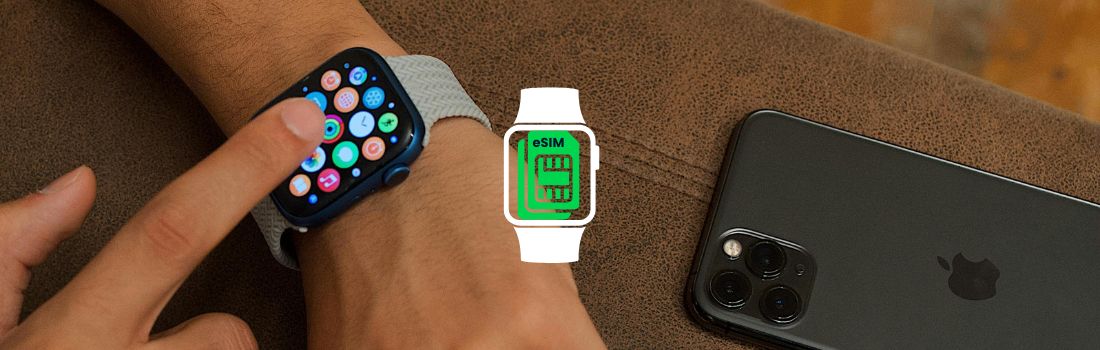
On smartwatches, eSIMs enable standalone connectivity. That means your watch can make and receive calls, send messages, and use data even if your phone isn’t nearby.
One phrase that is often used when discussing eSIM-compatible devices is “LTE”, which stands for Long-Term Evolution. It’s the standard used for 4G mobile networks – the technology that delivers fast mobile internet and reliable voice services.
When a smartwatch is described as an “LTE” or “Cellular” model, it means it can connect directly to the mobile network (via an eSIM or physical SIM, depending on the device) without relying on your phone’s Bluetooth or Wi-Fi connection.
For business owners, that independence matters in multiple ways. Firstly, you won’t miss calls if you step away from your desk. You can also manage notifications on the go, hands‑free, and keep your professional number active without juggling two phones.
Which smartwatches support business eSIMs?
In the UK, several leading smartwatch models support eSIM:
- Apple Watch (Series 4 and later, including SE and Ultra)
- Samsung Galaxy Watch (4, 5, 6 series and newer LTE models)
- Google Pixel Watch (LTE versions only)
Other brands like Huawei, Oppo, TicWatch, Fossil, Garmin and Amazfit also produce LTE smartwatches with eSIM support. However, UK provider compatibility varies, and many of these models are not officially supported by the big UK networks – so always double‑check that the model you choose offers the features and support you need before making a purchase.
Tip: Not every smartwatch has LTE. Many budget or GPS-only versions look identical to cellular models, but won’t support eSIM. Always check you’re buying the GPS + Cellular version.
This is where YourBusinessNumber comes in: we provide a dedicated business eSIM that works on your phone and can be linked to WhatsApp Business – helping you keep customer conversations separate from your personal life.
How to set up a business eSIM on a smartwatch
Most smartwatches prompt you to add mobile data during the first pairing process. Here’s how it works on the main models:
For Apple Watch (paired with iPhone)
- Open the Apple Watch app on your iPhone.
- Go to My Watch, then Mobile, then Set Up Cellular.
- Scan the QR code provided by your carrier, or provide alternative instructions if provided.
- Follow the prompts to confirm activation.
- Once set up, your Apple Watch will connect via its own eSIM.
Note: Apple Watch requires an iPhone and must be on the same carrier as your phone line.
For Samsung Galaxy Watch or Android watches
- Open Settings on your watch, then go to Connections, then SIM Card Manager.
- Tap Add mobile plan, then Add Using QR Code.
- Use your camera to scan the QR code from your carrier.
- Follow the steps to download and activate your profile.
- Test by switching Bluetooth off – your watch should still connect.
Note: LTE features only work with Android phones, and usually require the same network as your handset.
For Google Pixel Watch (LTE versions)
- On your phone, install or open the Google Pixel Watch app.
- On your watch, swipe down to find Settings, then choose Connectivity, then Mobile, then On.
- In the phone app, go to Mobile Network, then Set Up A New Profile.
- Choose your mobile carrier and follow the prompts.
- Test by turning Bluetooth off on the phone – calls/data should still work.
Note: Pixel Watch LTE must usually be on the same network as your phone.
What are the benefits for small businesses of using a business eSIM on a smartwatch?
For small businesses, adding an eSIM to your smartwatch can unlock powerful advantages:
- Stay reachable anywhere. With an eSIM-paired smartwatch, you can take work calls even if your phone is in your bag or at your desk.
- Separate work and personal life. This setup helps you keep your business line separate from your personal phone line, without needing to pay for and carry a second handset.
- Travel with ease. Stay connected during meetings abroad or while working in the field, without the hassle of carrying multiple devices.
- Boost productivity. With a smartwatch set up for business use, you can deal with quick customer queries without breaking your workflow.
- Never miss critical alerts. Receive 2FA (two‑factor authentication) codes – one‑time security codes that help verify your identity when logging in – as well as appointment reminders, and customer notifications straight to your wrist.
Things to check before you activate your eSIM on a smartwatch
Before you activate, make sure you’ve covered these key points to avoid surprises:
- Same-network rule – most smartwatches must use the same carrier as your phone.
- Postpaid eligibility – watch add-ons are often available on postpaid plans only. Check with your provider if you’re not sure.
- Phone compatibility – Apple Watches only work with iPhones. Android watches can pair with iPhones, but LTE features are usually disabled.
- Check the model before you buy – only GPS + Cellular versions support eSIM.
- Costs and limits – many UK carriers charge a monthly add-on fee; some share data with your phone plan, others use a separate allowance.
- Roaming & features – roaming, Wi-Fi Calling, voicemail and emergency services may work differently on watch plans when compared to phone plans, so check the details with your provider.
Common issues and troubleshooting
If you run into problems while setting up or using your smartwatch eSIM, most issues have straightforward fixes:
- eSIM not activating? Make sure your phone line is active and on the same network, then retry activation in the companion app.
- No mobile data on the watch? Toggle Airplane mode on and off, or reboot both devices.
- Switching watches or phones? You’ll usually need your carrier to issue a new eSIM profile and delete the old one first.
- Roaming not working? Many smartwatch plans don’t support roaming, so check your provider’s policy.
Security and compliance considerations
When you or your team start using smartwatches for business, it’s important to keep security and compliance front of mind:
- Enable a passcode or biometric lock. Make sure every smartwatch has a secure lock screen to prevent unauthorised access if it’s lost or stolen.
- Stay on top of GDPR obligations. Remember that notifications, messages and call logs may contain personal data, so you must handle them with the same care as other business records.
- Use device management tools. If you’re rolling out watches across a team, management software may help you enforce security settings, push updates, and remotely wipe data if needed.
- Keep a record of activations. Maintain a detailed log of which staff devices have eSIMs activated, including plan details, to stay compliant, manage costs, and ensure accountability.
Best practices for small business owners using eSIM-enabled smartwatches
Before putting smartwatches to work in your business, it helps to follow some best practices:
- Decide on each device’s purpose. Work out whether smartwatches are mainly for personal convenience or a wider team rollout, and set clear usage guidelines so everyone understands what’s expected of them.
- Keep a register of activations. Maintain a log of all eSIM activations across devices. This ensures you know exactly who is connected, which plan they’re on, and how they use the device. This helps with security and cost control.
- Review costs and usage. Schedule regular reviews of data usage and plan charges. This prevents paying for underused lines and makes it easier to spot if a cheaper or better‑suited plan is available.
- Plan for reduced battery life. LTE use tends to drain watch batteries faster. Encourage staff to charge devices daily, and consider providing charging docks or backup devices if watches are used heavily in the field.
FAQs about business eSIMs on smartwatches
Do I need an eSIM phone to use a smartwatch eSIM?
No. Your phone doesn’t have to use an eSIM itself – it can have a physical SIM. What matters is that your watch’s plan is set up with the same carrier as your phone.
Can my smartwatch roam abroad with eSIM?
Sometimes, but not always. Many UK smartwatch add-ons don’t support roaming, or only work in selected countries. Always check your carrier’s policy before travelling.
Will my Apple Watch work with an Android phone?
No – Apple Watches only pair with iPhones. If you have an Android phone, consider a Samsung Galaxy Watch, Google Pixel Watch or another Android-based model.
Can I use an Android LTE watch with an iPhone?
Yes, you can pair most Android watches to an iPhone over Bluetooth. But mobile data and eSIM features usually won’t work – you’ll just get Bluetooth notifications.
How do I know if my smartwatch supports eSIM?
On the watch, go to Settings, then Connectivity, then Mobile/SIM. If you see an option to Add Mobile Data Plan, the device is eSIM-ready.
Can I switch networks on a smartwatch eSIM?
eSIM technology makes it easier in principle, but in practice, your choice is limited to carriers that support your watch model in the UK. You may need your carrier to issue a fresh QR code if you switch.
Does using LTE on a smartwatch drain the battery?
Yes. Mobile data uses more power than Bluetooth or Wi-Fi. If you’re on calls or streaming via your watch, expect the battery to drain faster.
Is it secure to use business apps on a smartwatch?
Yes – but only if you take precautions. Always use a passcode or biometric lock, and if you’re rolling out across a team, add watches to your device management policy to stay GDPR-compliant.
Recap
A business eSIM on a smartwatch can make you more responsive, professional, and flexible. With the right setup, you’ll never miss a call, even when your phone isn’t with you.
Just remember:
- Check your watch and carrier compatibility.
- Understand the same-network and plan eligibility rules.
- Follow the activation steps carefully.
- Test before rolling out across your team.
Simplify your smartwatch setup with YourBusinessNumber
Choosing how to connect your smartwatch depends on your business needs, but for most small business owners, pairing eSIM technology with a reliable business number offers the clearest advantage. With eSIM, activation is fast and management is simple – and when combined with a dedicated business line, you gain flexibility without extra devices.
By using YourBusinessNumber, you can keep your personal and business lives separate on your phone while still benefiting from a clear, professional number for WhatsApp Business and work calls. Then, by adding a carrier smartwatch add-on, you can extend that connectivity straight to your wrist.
So there’s no need to wait. Whether you’re setting up a virtual WhatsApp Business number or exploring business eSIM support for your smartwatch, you’ll be ready to go in minutes – with no second phone required.
Author:

George Lineker
Get A Virtual Number Now!
Receive your number for WhatsApp verification in just 3 clicks!