


Table of Contents
Essentials to know
- What verification means – The blue badge confirms Meta has verified your business as authentic, boosting trust and reducing impersonation risks.
- Who qualifies – Eligibility varies by region but generally requires a strong online presence, consistent business info, and compliance with Meta’s terms.
- Two types of verification – Business identity verification (via Meta Business Manager) and the public blue badge (via Meta Verified for Business subscription).
- Why applications get declined – Inconsistent branding, weak online presence, mismatched details, or using a personal number instead of a dedicated business number.
- How to improve approval chances – Align branding, use an official email, strengthen your digital footprint, engage actively with customers, and use a dedicated business number.
If you’ve used WhatsApp Messenger or WhatsApp Business to chat with companies, you’ve seen the verified badge next to official business accounts. It’s a small symbol, but it has a huge significance for customers. The verified badge reassures clients that they are speaking to a real business, not a scammer or impersonator. Let’s take a closer look at how verification on WhatsApp Business works, how to check your eligibility, and what to do if your business is not approved immediately.
What does “WhatsApp Business verification” mean?
If WhatsApp Business verifies an account, it means Meta has confirmed it is genuine. This is based on the business profile’s activity on Meta platforms, or on evidence that they provide in the form of information or documents.
How can I identify a verified WhatsApp Business account?
It’s easy to spot a verified account when you know what to look for. A verified WhatsApp Business account displays:
- An official business name instead of a phone number
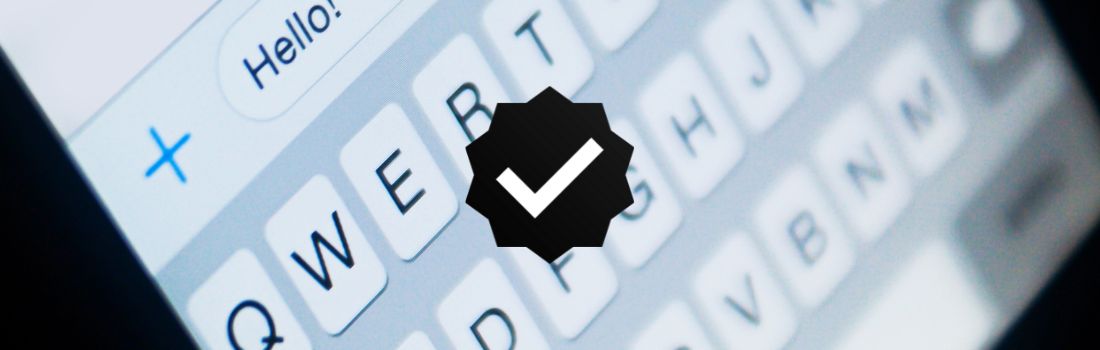
- A verification badge in the business profile, call tab, and chats. This is a small blue checkmark (tick) icon.
Note: WhatsApp previously displayed a green tick as its verification badge, but it changed to a blue tick in 2024. This was part of a move towards greater consistency across WhatsApp and other Meta platforms, such as Instagram and Facebook.
The Verification Badge and why it matters
Verification is more than just a visual marker – it provides reassurance from the very first glance.
When customers see the verified badge, they instantly know that they are speaking with the real business, and not a scammer or impersonator. This makes it easier for people to trust your messages, ask questions and take the next step, whether that is requesting a quote, placing an order or confirming a booking.
The blue badge also helps your business name stand out in chats and call screens, which can encourage faster replies and reduce hesitation. This can be especially valuable for businesses that use WhatsApp to manage bookings, quotes, orders or customer service enquiries, as it often leads to quicker responses and smoother, more confident conversations.
Who can get verified on WhatsApp Business?
Verification is available to Australian businesses that have a clear, professional online presence. The applicant must also be at least 18 years of age, have a phone number in a country where Meta Verified for businesses is available, and comply with the Meta Verified for Business Terms of Service and the WhatsApp Business Terms of Service.
To improve your chances, be prepared to share your Australian Business Number (ABN) and any other required documents, and make sure your website, social profiles and business details are up to date and consistent.
Note: Meta has stated that its eligibility criteria are subject to change as it rolls out Meta Verified for Business.
Key differences between verified and unverified accounts
| Feature | Unverified account | Verified account |
| Display name | May show only your phone number | Always displays your official business name |
| Trust level for clients | Standard | Recognised as authentic |
| Customer confidence | May require reassurance | More likely to be trusted immediately |
| Visibility in notifications | Similar to personal messages | Stands out as a brand |
| Protection from impersonation | None | Stronger protection in place |
Before you apply – a basic eligibility checklist for WhatsApp Business verification
Your business is more likely to be approved if:
- Your WhatsApp Business profile is fully completed (including a company logo, business name, category, and description).
- Your business has a consistent online presence (with matching information across your website, Google Business profile and social media profiles).
- The account has been active recently, with regular customer messaging.
- Your business complies with WhatsApp’s Business Messaging Policy.
- Your business is not in a restricted category (such as gambling, adult products, or certain financial services).
These steps help demonstrate that your business is established and legitimate.
Meta Verified for Business (subscription option)
WhatsApp is currently rolling out Meta Verified for Business, a paid, monthly subscription which includes:
- A verified badge.
- Impersonation protection.
- In-app support (priority depends on the plan tier).
- The ability to link multiple devices and verified channels (depending on subscription level).
To check if Meta Verified is available:
- Open WhatsApp Business.
- Go to Settings or Business Tools.
- Look for Meta Verified.
If the option is present, you can subscribe directly. There are three subscription tiers offering different features.
If you don’t see the option within your Settings or Business Tools, your account may not yet be eligible, and the API route will apply instead.
Note: Businesses that already have the badge keep it automatically, with no extra steps required from the business owner.
How to get verified on WhatsApp Business
There are two parts to verification on WhatsApp Business, and it’s important to understand the difference:
1. Business identity verification
This step confirms that your business is legitimate. It’s handled through Meta Business Manager, where you may be asked to provide documentation to prove your business details.
This verification is required for businesses using the WhatsApp Business Platform (API) and for unlocking higher messaging tiers.
Note: This step does not give you the blue verification badge and is not visible to customers.
2. The blue verification badge (Meta Verified for Business)
The blue badge is a public trust signal that appears in chats, profiles, and call screens.
It is included in a paid subscription to Meta Verified for Business, which is currently being rolled out gradually. This means some accounts will see the option to subscribe, while others may not yet have access.
If you see Meta Verified in your WhatsApp Business settings, you can subscribe directly by following these steps:
- Open WhatsApp Business and go to your Chat list.
- Tap Tools.
- Select Meta Verified, then tap Continue.
- Choose the subscription package best suited to your business.
- Select the account(s) you want to verify. If your business also has linked Facebook or Instagram accounts, you can verify them together. Tap Continue.
- If your business meets the eligibility requirements, you will be prompted to set up your payment method and complete your first payment. Tap Pay to proceed. (If Meta cannot verify your business, this payment will be refunded.)
- Enter your business details, then tap Next.
- Select your business from the list. If it is not shown, choose None of these matches my business.
- Choose a verification method, then tap Next.
- Provide the required verification information and tap Next or Submit.
- Tap Done.
Your application will then be reviewed. The verification process typically takes up to three business days, although it may take longer during busy periods.
Common reasons verification is declined on WhatsApp Business
It’s completely normal for some businesses not to be approved the first time they apply. Verification is not a judgment of the quality of your business – it simply reflects whether enough information is available for Meta to confirm your identity confidently. If your request is declined, the response usually points to one of a few common issues that can be addressed.
Inconsistent or minimal business information
One of the most common reasons that business verification is declined is when the information on your website does not clearly match the details in your WhatsApp Business profile. If there are inconsistencies, Meta may not be able to confirm that the two belong to the same business. Similarly, accounts with limited or very minimal online presence may not provide enough evidence for verification at the time of application.
Inconsistent branding
Brand consistency also plays a role. If your business name, logo or tone of voice appears differently across your website, Google Business Profile, Facebook Page or Instagram account, it can make it more difficult for Meta to confirm your identity.
Using a personal phone number rather than a business-only number
Finally, if your WhatsApp Business account is connected to a personal phone number rather than a dedicated business number, the verification process can be less straightforward. This is especially true if your business documentation lists several different personal numbers, rather than one business number. Luckily, this problem is an easy one to fix – use a virtual second phone number from a trusted provider, like YourBusinessNumber.
These issues are usually easy to correct. Once your business details are aligned and your online presence is clearer and more consistent, you can apply again with a stronger chance of approval.
How to improve your chances of verification on WhatsApp Business
Improving your chances mostly comes down to clarity and consistency. The goal is to make it as easy as possible for Meta to recognise your business and confirm that your WhatsApp account matches your broader online presence.
Use your official business name
Make sure the name on your WhatsApp Business account matches the name registered with your business documentation, website and social profiles. Avoid abbreviations, nicknames or variations, unless they are widely recognised and used consistently across your brand.
Align your branding across platforms
Your business should look and feel like the same organisation wherever it appears online. Check that your logo, tone of voice and business description match across your website, Google Business Profile and social media accounts.
Use a domain-based business email address
Applying with an email address connected to your own website (for example, [email protected]) helps demonstrate legitimacy. Free or personal email addresses are more difficult for Meta to verify.
Show active customer engagement
An account that interacts regularly with customers appears more established. Reply to messages promptly and keep conversations going. This demonstrates that your WhatsApp Business account is genuinely in use.
Strengthen your online footprint
Reviews, press mentions, directory listings and consistent updates on platforms such as Google Business and social media all help show that your business is active, credible, and trusted.
Together, these steps help clarify your business identity and make it easier for Meta to verify.
What to do if you can’t get verified yet on WhatsApp Business
You can still create a professional and trustworthy WhatsApp presence, even without the verification badge. The key is to provide a clear, consistent and reliable experience for your customers.
Complete your business profile
Make sure your profile includes your business name, logo, category and a short, helpful description. This creates a strong first impression.
Use greeting messages, quick replies and labels
These tools help you reply quickly and keep conversations organised, making your business feel responsive and professional.
Respond promptly and consistently
Customers tend to trust businesses that reply quickly. Even a short, automated acknowledgement message can reassure people that they are being taken seriously and help them manage their expectations about when to expect a full reply.
Make your WhatsApp link easy to find
Add your WhatsApp link to your website, Google Business Profile, email signature and social media. This allows people to contact you with just one tap.
Consistency builds trust. With a clear profile, strong communication habits and easy ways for customers to reach you, your WhatsApp presence can feel confident and professional, even before verification.
Build a professional WhatsApp presence with YourBusinessNumber
Whether you subscribe to Meta Verified now, apply through the API, or decide to work towards verification later, one thing remains the same: you need a separate business number to keep your communication clear, organised and professional. Using a dedicated number helps you maintain boundaries, present a consistent identity, and ensure that customers always know they are contacting the right business.
YourBusinessNumber makes this easy. You can set up a WhatsApp Business number instantly, without needing a second handset, and run WhatsApp Business alongside your personal WhatsApp on the same phone. This means you can manage customer enquiries efficiently, keep conversations separate and present a polished, trustworthy image from the very first message.
Ready to build a professional WhatsApp presence with confidence? Let’s get started!
Author:

George Lineker
Get A Virtual Number Now!
Receive your number for WhatsApp verification in just 3 clicks!