



Essentials to know
- You can’t hide your number on WhatsApp: Meta always displays your registered mobile number on your profile, meaning customers and group participants can always see it.
- Keep your personal 04 mobile private: Using a dedicated virtual number lets Aussie tradies, sole traders, and small businesses verify WhatsApp Business without exposing their private mobile on invoices or directories.
- Run two accounts on one handset: Keep personal chats in WhatsApp Messenger and client enquiries in WhatsApp Business side by side without buying a second phone.
- Switch numbers without losing chats: If you already registered with your personal mobile, use WhatsApp’s Change Number tool to migrate your profile and chat history to a virtual line in minutes.
- No telco contracts or extra apps needed: Generate a dedicated virtual number via SMS in under two minutes on a flexible month-to-month plan, with extra lines available for your team.
The short answer is no – you can’t hide your phone number on WhatsApp. Your number is always visible to people you message. However, if you’re an Australian sole trader, freelancer, tradie, or small business owner who wants to message clients without handing out your private 04 mobile number, there is a simple workaround.
By setting up a second number to use with WhatsApp Business, you can chat with customers, send quotes, and confirm bookings while keeping your personal mobile completely private.
With YourBusinessNumber, it takes under two minutes to generate a dedicated virtual mobile number and verify your WhatsApp Business profile on the exact same phone you already carry.
During setup, you simply enter your new virtual number instead of your personal mobile. YourBusinessNumber forwards the 6-digit SMS verification code straight to your handset, letting you activate your business account immediately without buying a second device or getting locked into another 24-month telco contract.
Why Can’t I Hide My Number in WhatsApp?
While Meta continues to roll out new security and privacy controls, WhatsApp still ties every account to a real, active phone number to prevent spam and verify user identities. Whenever you message a customer or join a group chat, your registered number appears on your profile.
If your personal 04 number is already linked to your standard WhatsApp Messenger app, Meta won’t let you use that same number for WhatsApp Business as well.
To run both side by side, you need a valid, separate mobile number that isn’t already registered to a WhatsApp account. That is where YourBusinessNumber comes in – you can generate a dedicated WhatsApp Business number in a few clicks and keep your private details off invoices, ute signage, and trade directories like hipages or Airtasker.
Where Do I See My Phone Number on WhatsApp?
Your registered phone number is always displayed inside the profile section of the app:
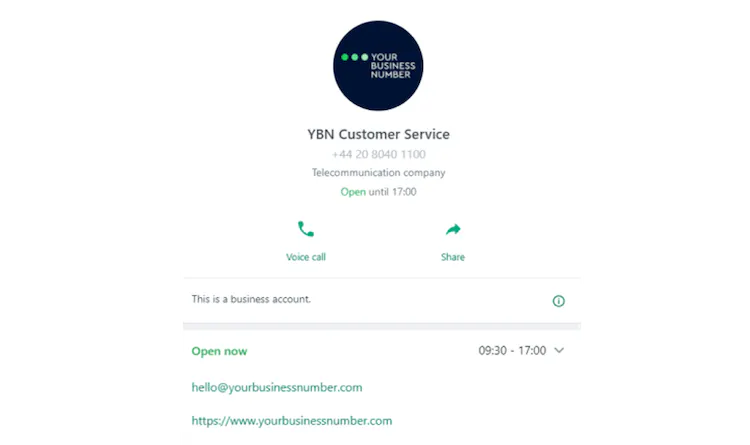
In the WhatsApp Business app, you can turn this screen into a digital storefront featuring your services, trading hours, location, and website – read our guide on making the most of these WhatsApp Business features.
To check which number is currently showing on your account:
- Open WhatsApp from your phone’s home screen.
- Tap on Settings (bottom right on iPhone, or the three-dot menu on Android).
- Tap on your name or business name at the top of the screen next to your profile photo.
- Your registered phone number and country code will be displayed here – this is the exact number visible to clients, contacts, and anyone in a shared WhatsApp group.
What If I Want to Change My WhatsApp Number?
WhatsApp requires a unique mobile number for every account, so if you accidentally set up your business profile using your personal mobile, you don’t need to start from scratch. You can migrate your existing chats and profile to a new virtual number in minutes.
Open WhatsApp, head to Settings > Account > Change Number, and follow the on-screen prompts.
Enter your current personal number in the first box and your new YourBusinessNumber virtual number in the second. Once you enter the SMS verification code forwarded to your mobile, your account moves over cleanly – and you can choose whether to notify your contacts automatically.
How to Protect Your Personal Privacy and Switch Off After Work
For Australian small businesses and sole traders, mixing client enquiries with personal messages makes it nearly impossible to switch off in the evenings or over the weekend. Putting your personal 04 number on quotes, local directories, or social media pages also exposes your private phone to cold callers and scam texts.
Using a dedicated business line creates a clean boundary between work and home life on a single handset.
You keep family and mates inside standard WhatsApp Messenger, while all customer messages live inside the WhatsApp Business app – where you can set automated away messages outside your trading hours. Better still, keeping work and personal apps separate means no more accidentally sending a private message or photo to a client chat!
How to Get a Virtual WhatsApp Number Today
Ready to separate your work chats from your personal mobile without carrying two phones?
With YourBusinessNumber, you can generate a dedicated virtual number for WhatsApp or WhatsApp Business in under two minutes. There’s no 24-month telco contract, no extra apps to install, and you can cancel anytime on a flexible rolling monthly plan.
Whether you use an iPhone or Android handset, your new number is sent straight to you via SMS – and if you manage staff, you can easily generate extra lines for your team so nobody has to use their personal mobile for client comms.